Earlier this month, BeyondTrust warned customers to patch a critical zero-day vulnerability in its Remote Support product, software that IT teams use to connect to and fix computers from a distance. Attackers had been exploiting the flaw since August. For roughly two months, some organizations relying on that tool had a door open that nobody knew about.
It wasn't the only remote access story this month. Tailscale, a popular networking tool, rushed to prepare patches after details of flaws in its SSH feature were published before any fixes were available. Disclosures like that put defenders in a race against attackers who are reading the very same details.
If you own a small business in Wesley Chapel or anywhere in Tampa Bay, you may never have heard of either product. But there's a very good chance some kind of remote access tool is installed on every computer in your office right now. That isn't a bad thing. It's how modern IT support works. It is, however, something you should understand.
Why Remote Access Tools Are So Valuable to Attackers
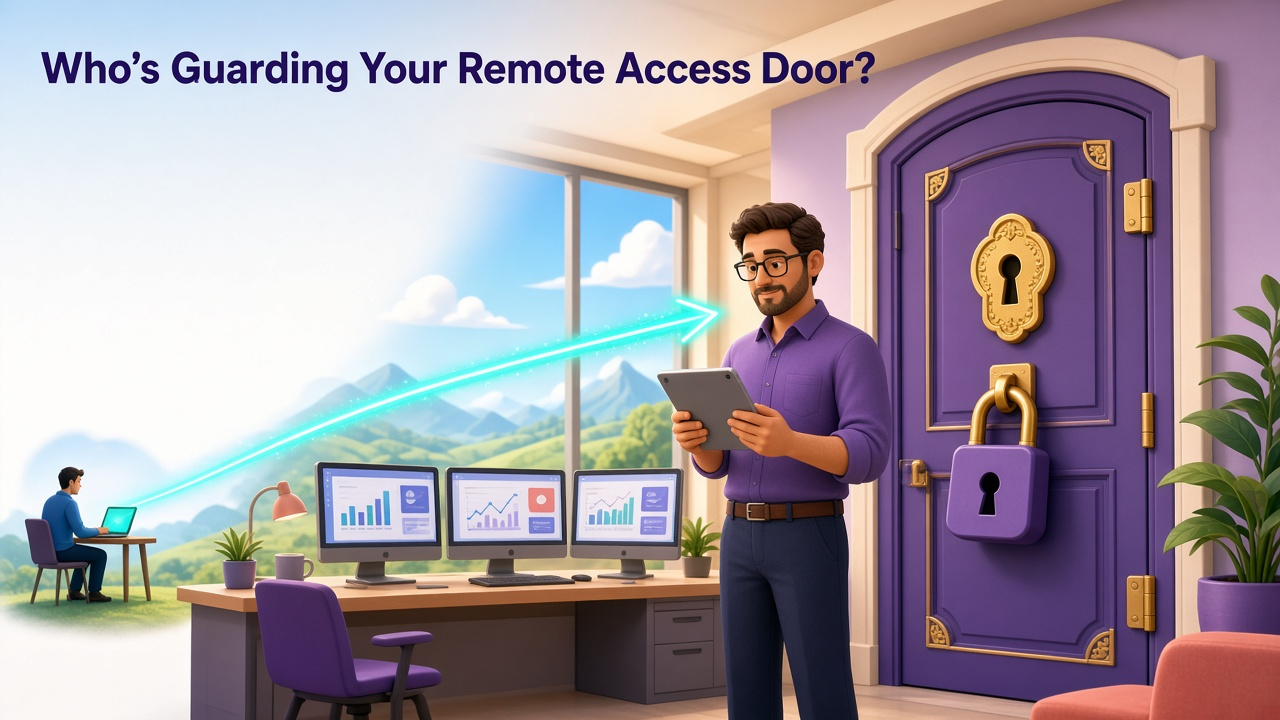
Remote access tools let a technician see your screen, run commands, install software, and change settings, often without anyone sitting at the computer. That's exactly what makes them useful for support. It's also what makes them a master key.
An attacker who controls a remote access tool doesn't need to trick your employees into clicking a link. They inherit the same trusted access your IT provider has, often with administrator rights, across every computer where the tool is installed. Their activity can also blend in with normal IT work, which makes it harder to spot.
This isn't theoretical. In 2021, attackers exploited Kaseya VSA, a remote management platform used by managed service providers, and pushed ransomware to roughly 1,500 downstream businesses in a single attack. Many of those businesses had done nothing wrong themselves. Their exposure came through a trusted tool.
Common Warning Signs
Over 25 years in technology, the same remote access problems come up again and again:
• Leftover tools from a previous IT provider, or from a one-time support call, that were never removed.
• Multiple remote access tools installed on the same computer, each with its own risks and update schedule.
• Shared technician logins, where several people use the same account so nobody knows who connected when.
• No multifactor authentication on the accounts that control the remote access tool.
• Unattended access turned on everywhere, even on machines that rarely need support.
What Good Looks Like
Securing remote access doesn't mean getting rid of it. It means treating it like the powerful tool it is.
• Every technician uses their own named account, protected by multifactor authentication.
• The remote access tool itself is patched quickly, especially when a critical vulnerability is announced.
• Sessions are logged so you can see who connected, when, and to which computer.
• Unused and unknown remote access tools are removed, and endpoint protection is set to flag unexpected ones.
• Access is limited to the people and computers that actually need it.
Attended or Unattended?
Many remote access tools offer two modes. Attended access requires someone at the computer to approve the session, while unattended access lets a technician connect at any time. Unattended access is genuinely useful for servers and after-hours maintenance, but it doesn't need to be the default on every laptop in the office. A thoughtful provider will match the mode to the machine and explain the choice. On workstations that hold sensitive client information, an approval prompt or a visible notification when someone connects is a simple safeguard that also builds trust with your staff.
Questions to Ask Your IT Provider
You don't need technical knowledge to ask good questions. Start with these: Which remote access tools are installed on our computers? Is multifactor authentication required for every technician who uses them? How quickly do you patch the tool itself when a vulnerability is announced? Can we see a record of who connected to our systems and why? Did you remove the tools our previous provider used?
A good provider will welcome these questions and answer them clearly. If yours gets vague or defensive, that tells you something important.
For Florida Insurance Agencies
Controlling who can access systems that hold client information is central to the safeguards expected under Florida Administrative Code Rule 69O-128.032 and the NAIC cybersecurity standards carriers reference. Remote access is also one of the first topics cyber insurers ask about, and an unmanaged remote tool is exactly the kind of gap that can turn into a reportable breach.
How Main Event Managed Services Helps
At Main Event Managed Services, we use remote access every day to support businesses across Wesley Chapel, Tampa, and the Tampa Bay area, so we take securing it seriously. We audit what's installed, remove what doesn't belong, require MFA on every technician account, keep our tools patched, and log every session. And we're happy to answer every question on the list above.
Want a second opinion on your remote access setup? Reach out at contact@maineventmsp.com or visit maineventmsp.com.